
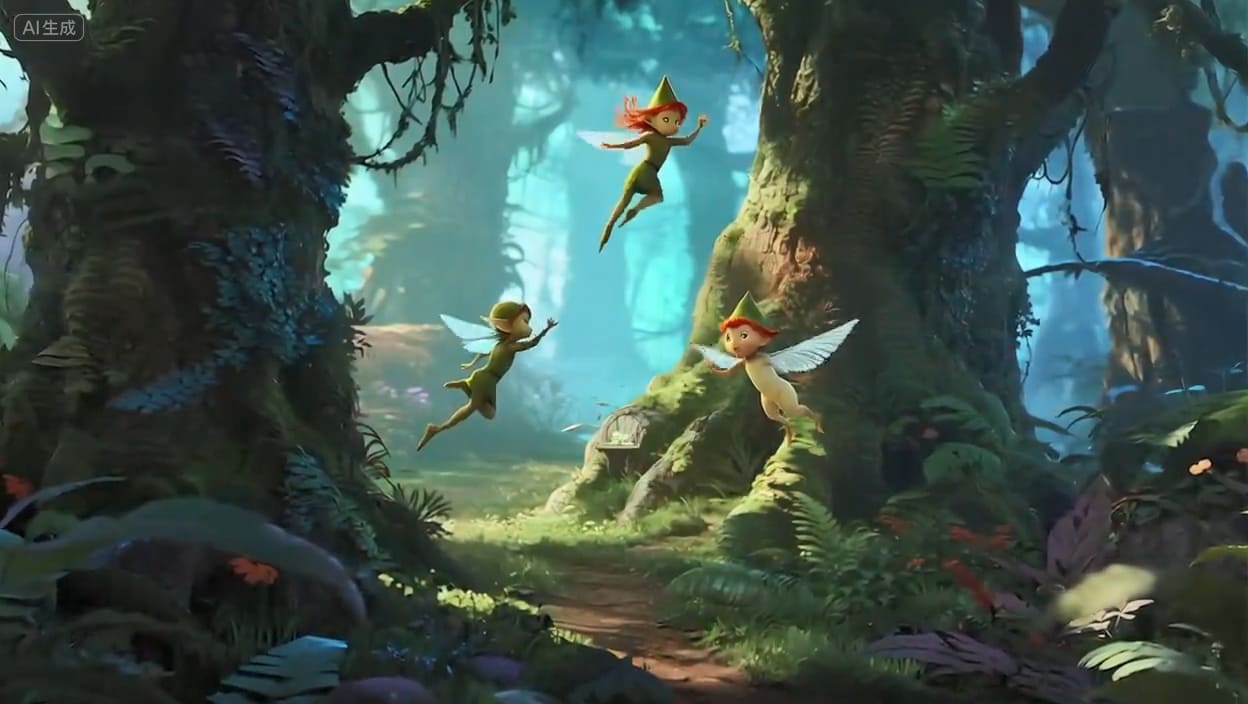
If you’ve ever tried to make a short film using generative AI, you know the pain.
In Scene 1, your protagonist is a gritty, 40-year-old detective with a scar on his left cheek. By Scene 2, he looks like a 25-year-old model. By Scene 3, he’s somehow wearing a different jacket and the scar has moved to his forehead.
We call this the "Shapeshifting Glitch." It happens because most AI models have "amnesia"—they generate every new clip from scratch, forgetting what they just created five minutes ago.
This weekend, I decided I was done with random results. I locked myself in my home office with Story Video AI, a pot of coffee, and a goal: create a 30-second cohesive narrative where the main character actually looks like the same person from start to finish.
It took me 48 hours of trial and error, about 200 failed generations, and a lot of frustration. But I finally cracked a workflow that works. Here is exactly how I did it.
The Challenge: "The Cyberpunk Courier"
To test this, I created a character named "Kael," a cyberpunk courier with neon blue hair and a specific metallic jacket.
My Goal: 1. Scene A: Kael walking down a rainy street. 2. Scene B: Close up of Kael looking at a holographic map. 3. Scene C: Kael running away from a drone.
If the AI changed his hair color or his jacket design, the video would be unwatchable.
Phase 1: The Naive Approach (Hours 1-5)
My first attempt was what 90% of beginners do: I just kept describing him in the text prompt over and over.
Prompt: "A cyberpunk courier named Kael, neon blue hair, metallic silver jacket, walking in rain..."
The Result? Absolute chaos. In the first clip, Kael had a beard. In the second, he was clean-shaven. In the third, his "silver jacket" turned into a space suit.
The Lesson: You cannot rely on text prompts alone for consistency. Words are too open to interpretation. "Neon blue hair" can be interpreted in a thousand different styles by the diffusion model. I needed a stricter constraint.
Phase 2: The "Master Identity" Strategy (Hours 6-20)
This was my breakthrough moment. Instead of trying to generate a video immediately, I realized I needed to generate a Reference Image first.
I went into the Story Video AI image generator and ran prompts until I got one perfect image of Kael.
Tip: I used a "Character Sheet" style prompt. Prompt: "Character design sheet, front view and side view of a cyberpunk courier, neon blue messy hair, silver tactical jacket, neutral expression, flat lighting, white background."
Once I had this "Master Image," I didn't just save it. I analyzed it. I realized the AI had given him a specific collar detail I hadn't asked for. I updated my text prompts to include these specific details.
But even with better text, the video generation was still drifting. I needed to force the AI to look at the Master Image.
Phase 3: The "Image-to-Video" Anchor (Hours 21-35)
This is where I started using Story Video AI’s Identity Preservation System (specifically the Image-to-Video feature).
Here is the workflow that finally started working:
1. Start with the Master Image: I uploaded my "Kael" portrait as the First Frame reference. 2. Low Creativity Settings: In the settings panel, I lowered the "Creativity/Hallucination" slider. I didn't want the AI to invent new things; I wanted it to animate what was there. 3. The "Seed" Trick: I found the specific Seed Number of the generation that worked best.
The Struggle: Even with Image-to-Video, the AI struggled with the running scene (Scene C). When Kael turned his head, his face would melt.
I spent about 4 hours stuck here. The issue was that my Master Image was a front view, but I was asking the AI to generate a side profile running shot. The AI didn't know what the side of his head looked like, so it guessed (badly).
The Fix: I went back and generated a side profile image of Kael first. Then, I used that side-profile image as the reference for the running scene.
Key Takeaway: You need a different reference image for different camera angles. Don't expect a front-facing portrait to generate a perfect back-view video.
Phase 4: The Remix & Stitch (Hours 36-48)
By Sunday afternoon, I had three clips that mostly looked like Kael. But the lighting was different. Scene A was blue-toned (rain), and Scene B was orange-toned (hologram light).
I used Story Video AI’s Style Transfer feature here.
1. I took a screenshot of Scene A (the rainy street). 2. I used that screenshot as a "Style Reference" for Scene B. 3. I re-rolled Scene B.
Suddenly, the lighting matched. The "Blue Hair" looked the same shade of blue in both shots because the lighting environment was consistent.
My Final Workflow Checklist
If you want to replicate this, don't just type and pray. Follow this checklist that I developed over my weekend of stress-testing:
1. Create a Character Sheet: Generate a static image of your character first. Do not start video generation until you love this image. 2. Lock the Seed: If you find a generation you like, write down the Seed number. Use it for the next shot. 3. Use Image-to-Video: Upload your character sheet as the initial frame or reference guide. This is 10x more powerful than a text prompt. 4. Match Angles: If you need a side shot, generate a static side shot first. Don't ask the video AI to rotate a character 90 degrees without a reference. 5. Iterate, Don't Settle: For the final 30-second video, I generated about 50 clips and threw away 45 of them. That is the reality of AI video right now.
The Verdict
Is Story Video AI magic? No. It didn't read my mind. I had to guide it, correct it, and sometimes fight with it.
However, once I stopped treating it like a slot machine and started treating it like a collaborative tool—using references, seeds, and strict prompt engineering—the results were incredible. The final video of "Kael" looked like a cohesive production, not a random slideshow.
The "Shapeshifting Glitch" isn't fully gone, but with the right workflow, you can definitely tame it.
Have you tried using Image-to-Video for character consistency? Let me know your experiences in the comments below.